
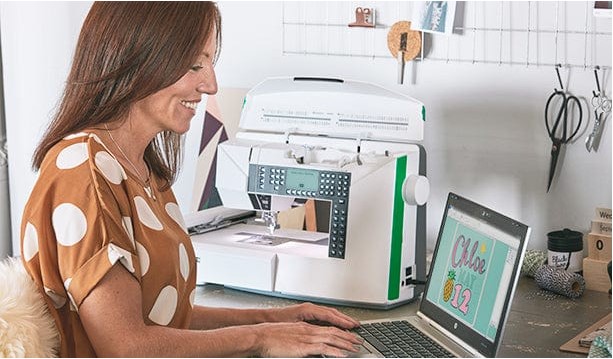
Embroidery is not just art. It is skill and tech working together. If you own a BAi embroidery machine, you already know this. The machine is strong and fast. But it needs the right file to stitch well.Many people try to Convert Logo to BAi Embroidery File by just changing the file type. That does not work. A logo image must be digitized first. It must turn into stitch data. In this guide, I will show you the easy way. I will share real tips from my own work. Let’s make this simple and clear.
What Is a BAi Stitch File?
A BAi stitch file is a file your BAi machine can read. It tells the machine:
-
Where to stitch
-
How many stitches to make
-
When to change color
-
When to trim thread
-
When to stop
It is not just a picture. It is a set of stitch commands.
BAi machines often use formats like DST. Some models may support other types too. Always check your machine manual first. This step saves time and stress.
Why You Cannot Stitch a Logo Image Directly
Many beginners make this mistake. They take a JPG or PNG logo. Then they load it into the machine. The machine cannot read it.
Why?
Because image files only show color and shape. They do not have stitch paths. They do not tell the needle where to move.
Before stitching, the logo must go through digitizing. This process turns the image into a stitch file.
I have fixed many bad designs. Most problems start here. People skip the digitizing step. That leads to broken threads and messy results.
What Is Digitizing?
Digitizing is the process of creating stitches from an image.
It is not auto tracing. Good digitizing is done by hand using software. The digitizer chooses:
-
Stitch type
-
Stitch angle
-
Stitch density
-
Underlay
-
Path order
Each step matters.
At Embroidery Digitizing Services in USA – Digitizing Buddy, we digitize logos by hand. We do not just press auto convert. This gives clean lines and smooth fills. It also helps reduce thread breaks.
Step by Step: How to Convert a Logo Image for BAi Machine
Now let us go through the full process in simple steps.
Step 1: Start With a High Quality Logo
Always use a clear image.
Best file types to send:
-
AI
-
EPS
-
PDF
-
High quality PNG
Avoid blurry images. Small and low quality logos cause guess work. That can affect stitch quality.
From my work, I can say this. Clean artwork gives clean embroidery.
Step 2: Open the Logo in Digitizing Software
Next, the logo goes into embroidery software.
Common tools include:
-
Wilcom
-
Hatch
-
Pulse
Inside the software, the digitizer will redraw the design using stitch tools.
This is where skill matters most.
Step 3: Set the Right Size
Size is very important.
Ask yourself:
-
Where will the logo go?
-
Shirt chest?
-
Cap front?
-
Jacket back?
Each area needs a different size.
For caps, the height is limited. For jacket backs, you can go large.
I always confirm the size with clients before digitizing. Changing size later can affect stitch density.
Step 4: Choose the Right Stitch Types
There are three main stitch types:
Running Stitch
Used for outlines and small details.
Satin Stitch
Used for text and borders.
Fill Stitch
Used for large areas.
Each stitch has a purpose. A small text logo needs clean satin stitches. A big solid area needs fill stitch with proper underlay.
Wrong stitch type can ruin the design.
Step 5: Adjust Stitch Density
Density means how close the stitches are.
Too dense:
-
Fabric puckers
-
Thread breaks
-
Needle may heat up
Too light:
-
Fabric shows through
-
Design looks thin
Good digitizing balances density. This depends on fabric type.
For cotton shirts, normal density works fine. For caps, density must change due to thick material.
Step 6: Add Proper Underlay
Underlay is the base stitch. It sits under the top stitches.
It helps:
-
Hold fabric in place
-
Improve shape
-
Add strength
Skipping underlay is a big mistake. I have seen logos sink into fabric because underlay was missing.
Step 7: Set Stitch Direction and Path
Stitch direction affects shine and texture.
Pathing affects production speed.
Good pathing:
-
Reduces trims
-
Reduces jumps
-
Saves time
In bulk orders, this makes a big difference.
At Embroidery Digitizing Services in USA – Digitizing Buddy, we always plan the stitch path to reduce machine stops. This helps clients save time in large runs.
Step 8: Export to BAi Supported Format
After digitizing is complete, the file must be saved in the correct format.
Most BAi machines support DST.
Before sending the file:
-
Check design size
-
Check color stops
-
Check stitch count
Then export.
Now your BAi stitch file is ready.
Testing the File on Your BAi Machine
Never skip testing.
Before full production, stitch one sample.
Check for:
-
Thread breaks
-
Gaps
-
Loose stitches
-
Puckering
If something looks wrong, adjust the file.
From real experience, test stitching saves money and fabric.
Common Mistakes When Preparing a Logo for BAi
Let us look at common errors.
Using Auto Digitizing Only
Auto tools are fast. But they are not perfect.
They may:
-
Add too many stitches
-
Ignore small details
-
Create messy paths
Manual editing is always better.
Ignoring Fabric Type
Different fabrics need different settings.
-
Caps need special underlay
-
Stretch fabric needs pull compensation
-
Thick jackets need stronger stitches
If you ignore fabric, the design may shift.
Making Text Too Small
Tiny text is hard to stitch.
As a rule, keep text height at least 4 to 5 mm for satin stitch.
Very small text may need running stitch.
How Long Does It Take?
For a simple logo, digitizing may take 1 to 2 hours.
For complex logos with many colors, it may take longer.
Rush jobs often lead to errors. Care and detail matter more than speed.
Why Professional Digitizing Is Worth It
You may try to learn digitizing yourself. That is great. But it takes time and practice.
Professional digitizers understand:
-
Stitch physics
-
Fabric behavior
-
Machine limits
At Embroidery Digitizing Services in USA – Digitizing Buddy, we have handled thousands of logos. We know what works on BAi machines. This experience helps avoid common issues.
Tips for Better Results on BAi Machines
Here are simple tips from real shop work.
Use Good Quality Thread
Cheap thread breaks often. This slows production.
Change Needles Often
A dull needle can damage fabric. It can also break thread.
Keep Machine Clean
Dust and lint build up fast. Clean your machine daily if you run it often.
Use Proper Stabilizer
Stabilizer supports fabric during stitching.
-
Use cut away for shirts
-
Use tear away for caps
-
Use heavy backing for thick items
The right stabilizer keeps the logo flat and clean.
Cost of Converting a Logo to BAi Stitch File
Prices vary based on:
-
Logo size
-
Number of colors
-
Detail level
-
Stitch count
Simple chest logos cost less. Large jacket back designs cost more.
Be careful of very cheap offers. Poor digitizing can cost more later in wasted garments.
Building Trust With Quality Work
Embroidery is detail work. One small error can ruin a shirt.
That is why trust matters.
When we work on a logo, we:
-
Review artwork
-
Confirm size
-
Confirm fabric
-
Test settings
-
Deliver clean files
This process builds long term client trust.
Good embroidery is not luck. It is skill and testing.
Final Thoughts
Turning a logo image into a BAi stitch file is not hard. But it must be done the right way.
Let us review the key steps:
-
Start with clear artwork
-
Digitize by hand
-
Choose proper stitch types
-
Set correct density
-
Add underlay
-
Export in the right format
-
Test stitch before bulk run
From my own hands on work, I can say this. Most embroidery problems come from poor digitizing, not the machine.
BAi machines are strong and reliable. Give them a clean stitch file, and they will perform well.
Take your time. Focus on quality. And always test before full production.
With the right process, your logo will stitch sharp, clean, and professional every time.




Leave a Reply